

.png)


Kinda like Andrea True’s 1976 hit “More, More, More...”
This month’s releases are all about giving your audience, well — more!
Whether it’s curating an agenda, grabbing one of the last spots, or getting in on the action with interactive virtual features, our latest Splash updates put meaningful choice and connection front and center.
The best way to understand what your audience cares about?
Give them the option to pick what matters most, on their own terms.
With our latest release, we’re making it even easier to run dynamic multi-session events in Splash.
Now, attendees can register for sessions right from your RSVP form.
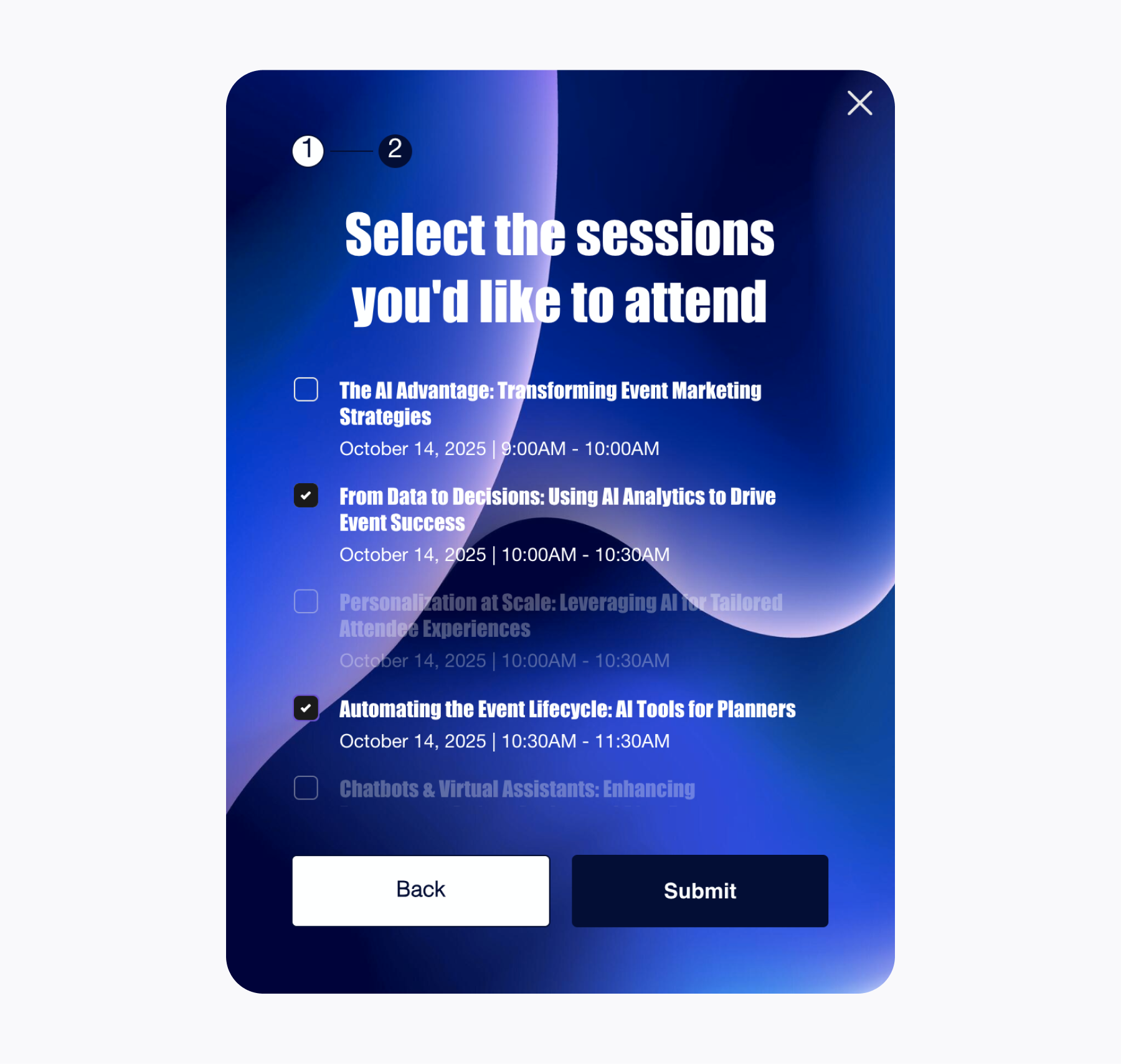
It's the ideal flow for smaller events with fewer than 20 sessions.
The upside:
Take a look at the full sessions experience in our interactive demo.
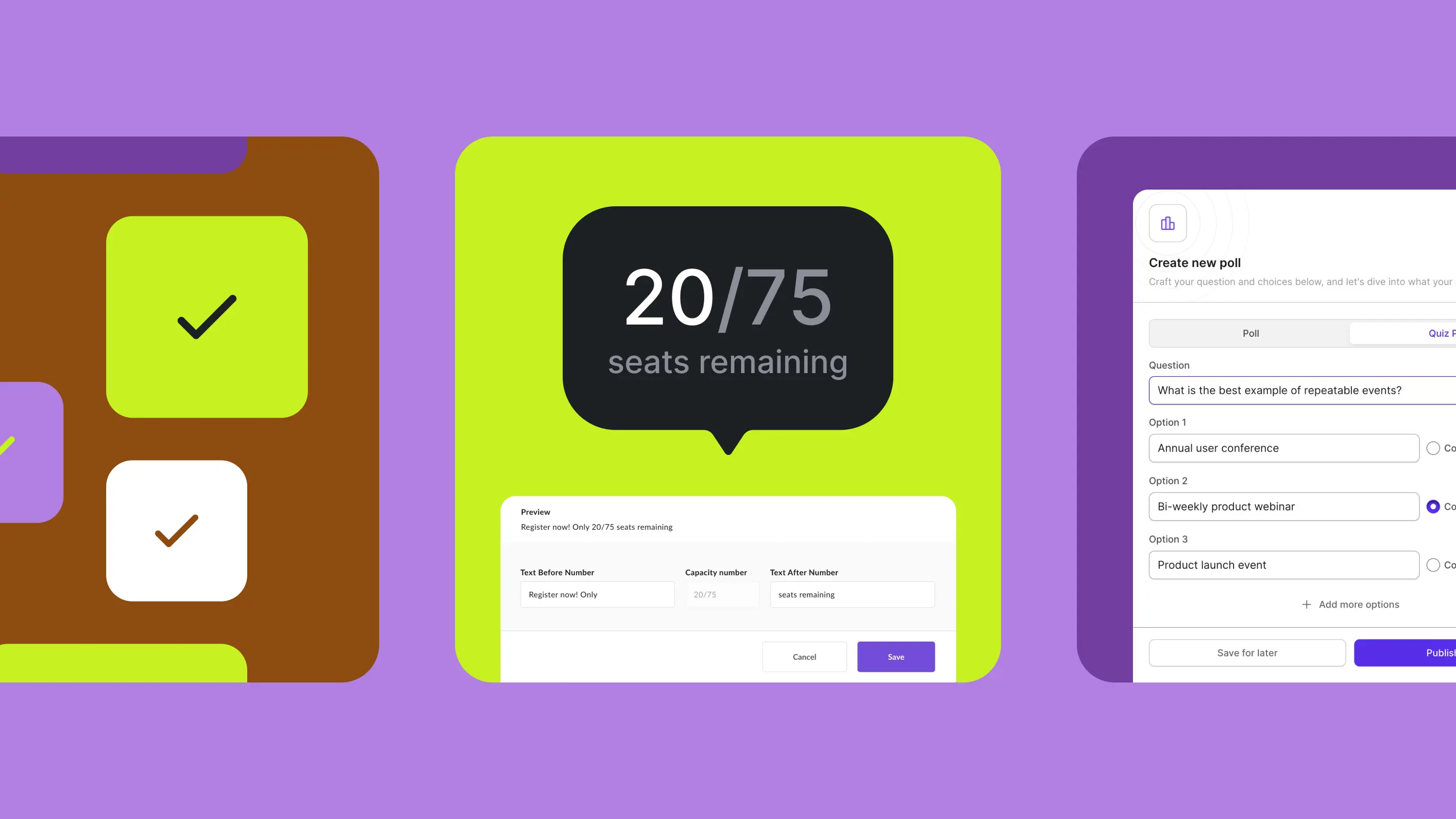
Nothing motivates attendees quite like watching spots fill up in real time.
Our new capacity element dynamically displays the number of remaining spots in your event.
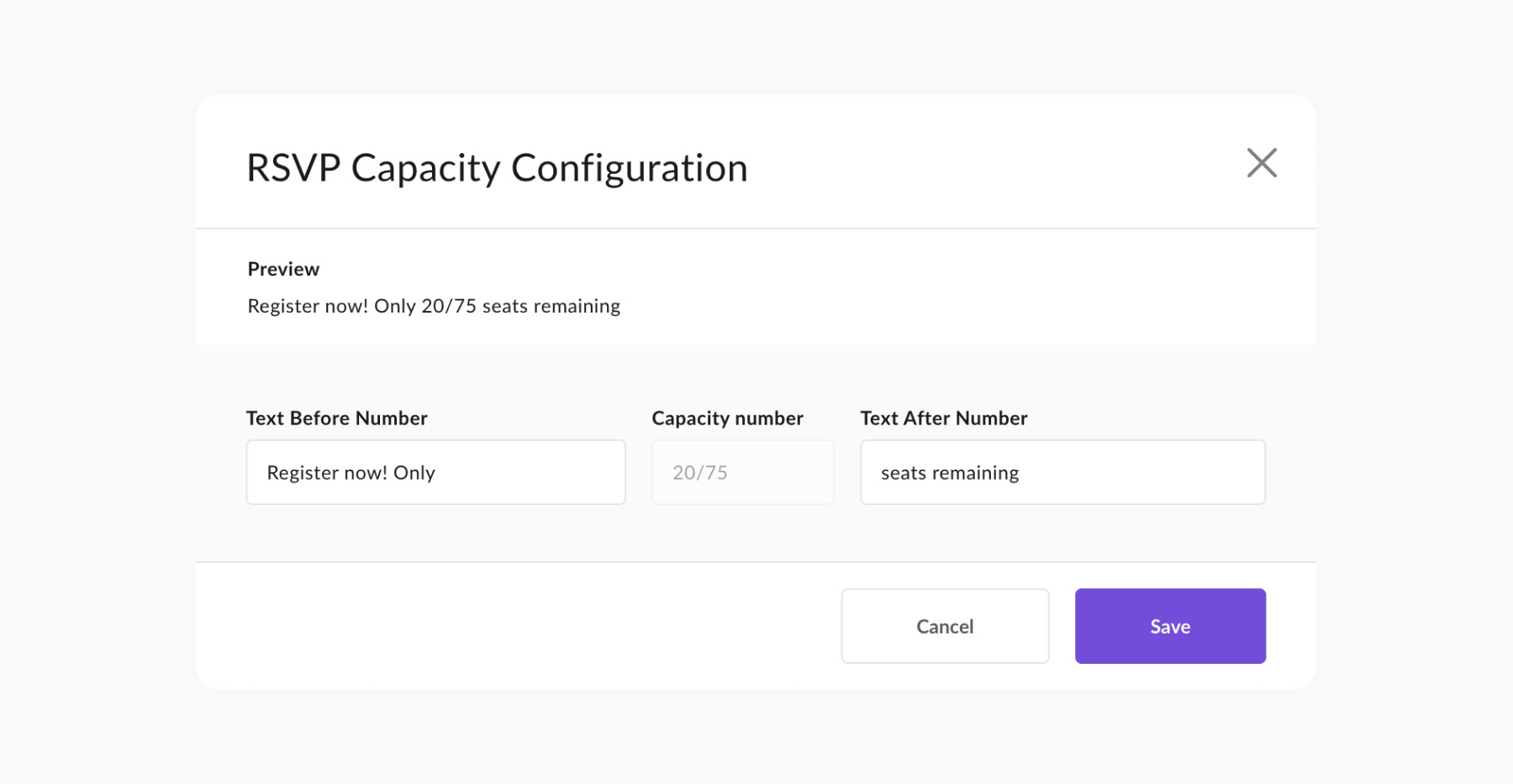
Setup is easy.
Start by setting a capacity (RSVP events only):
Then, add the new capacity element anywhere on your page.
That’s what we call a fast track to FOMO.
Big things are happening on the Splash Studio front.
In case you need a refresher, that’s our native streaming and engagement platform built for marketers who want their events to do more than just broadcast.
Polls are a great way to keep a pulse on audience engagement.
The next level up?
Running live, quiz-style polls throughout your webinar.
As you move through your content, toss in quick knowledge checks to reinforce key points and see how much your audience is absorbing.
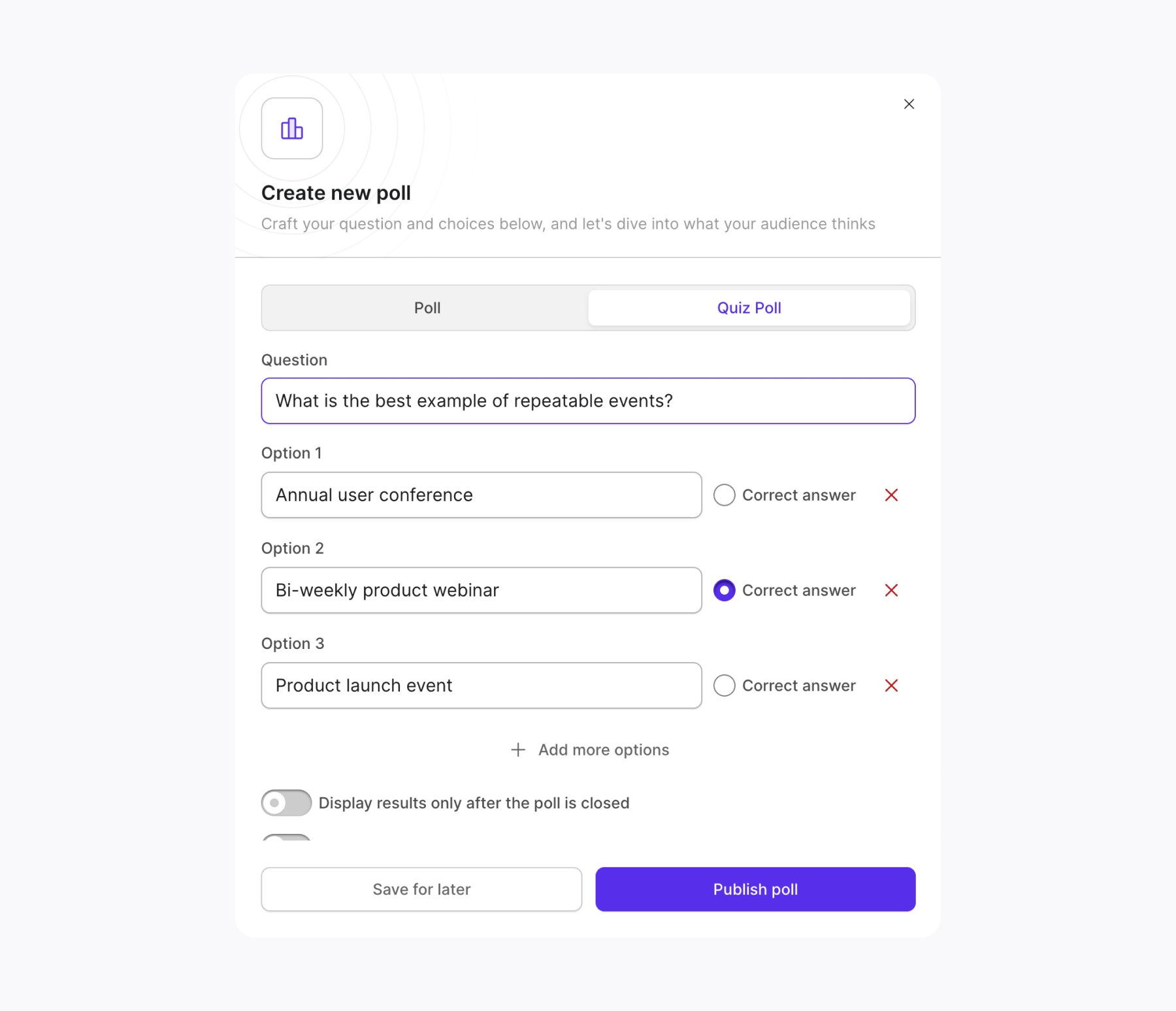
To get started:
You can even keep things competitive by revealing poll results in real time.
Give your most important announcements, updates, or calls-to-action in front of your audience in the most visually engaging way.
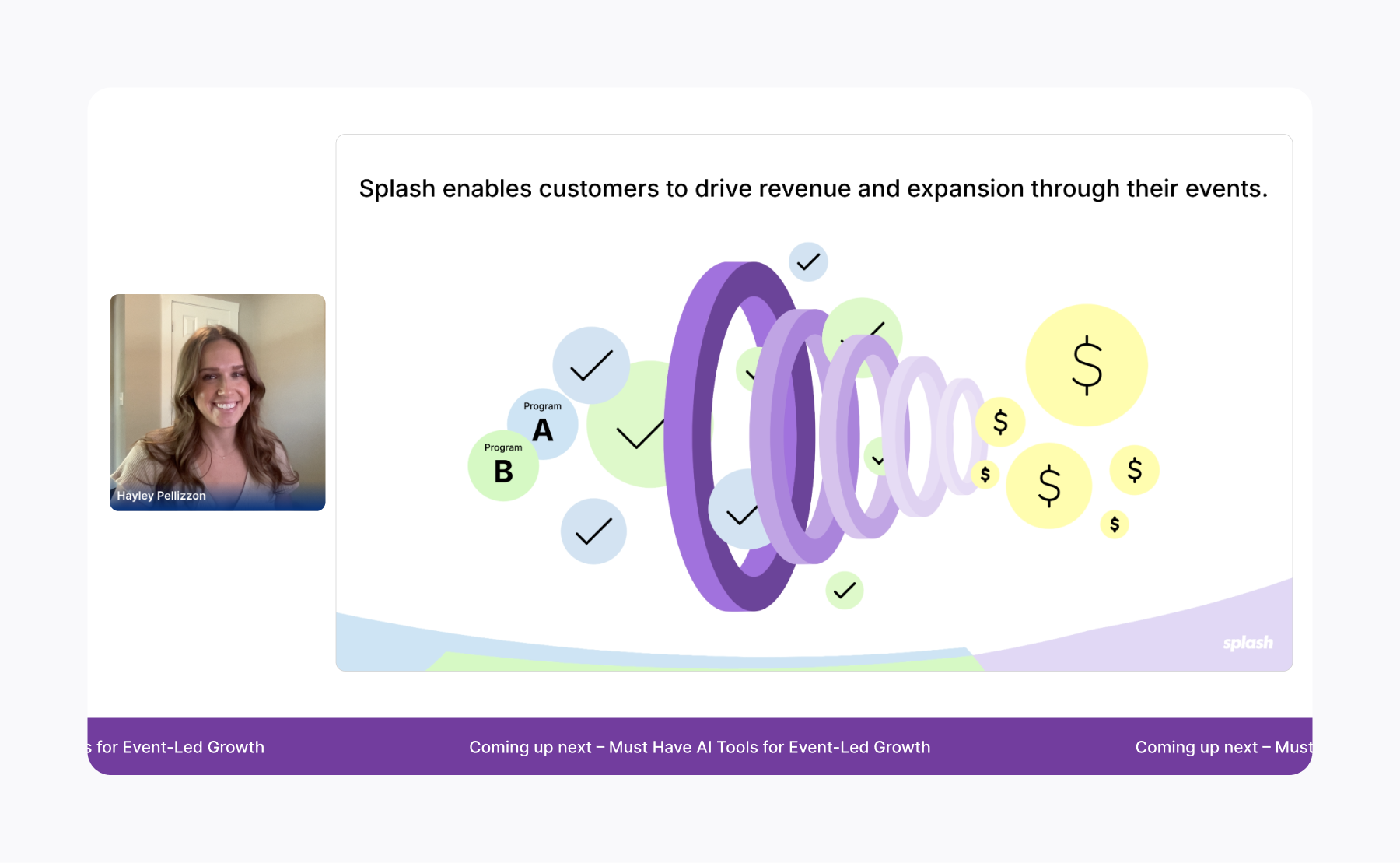
This dynamic banner continuously scrolls across the bottom of your webinar screen.
We’re always looking for ways to streamline your workflow and make it easier to run standout webinars.
Attendees love to drop their questions in the chat.
Now, you can easily move those questions straight into the Q&A tab with a single click.
This helps you keep track of what needs a response during a busy session.
Previously, once a poll was opened, you could only archive it (making it tricky to rehearse before your live session).
Now, you have the option to unpublish polls.
This means you can practice launching them during dry runs, then reset everything before going live.
We simplified question and poll notifications within the chat.
This way you can stay focused on your audience and the flow of your event without distracting alerts.
The hits don’t stop coming...
Soon you can upload your PowerPoint presentations directly to the Media tab.
This makes screen-sharing a breeze — no more switching between apps during your live event.
Even better, your PowerPoint transitions will play smoothly, just as you designed them.
Just upload the file, select, and present.
Just like you can add chats and questions as overlays, soon you’ll be able to add polls too.
It’s the easiest way to grab everyone’s attention right when it matters most.